
Step 1: Prepare the Revit Model
Before exporting, a little cleanup goes a long way.
Recommended prep steps:
- Use a dedicated 3D view specifically for export
- Set Detail Level to Medium
- Turn off unnecessary categories (furniture, annotations, MEP, entourage)
- Hide below-grade elements unless required
- Confirm project units
Doors & Windows Must Remain Visible
For landscape perspective renderings, doors and windows must be shown in the export model.
These elements are essential for us to:
- Identify primary and secondary building entries
- Align walkways, terraces, patios, and landscape thresholds
- Place planting, lighting, and site features accurately
- Establish realistic interior–exterior relationships in perspective views
We’ve occasionally received clean models where doors and windows were turned off, resulting in a blank massing model. This limits accuracy and typically requires re-exporting.
Best practice:
✔ Export with doors and windows ON
✖ Avoid exporting a simplified massing model for perspective work
Step 2: Export from Revit
In Autodesk Revit, use the following path:
File → Export → CAD Formats → DWG
Export settings to confirm:
- Export only the active 3D view
- Units set correctly (typically feet)
- Solids exported as ACIS solids
- Textures not required
Name the file clearly (e.g., ProjectName_3D_Export.dwg).
Step 3: Import into SketchUp
In SketchUp:
File → Import → DWG
- Set units to match Revit
- Preserve drawing origin
- Import faces (not edges only)
Once imported, immediately group and lock the building geometry to maintain alignment.
Step 4: How We Use the Model
Once imported, we:
- Lock the architectural model
- Add site context and grading references
- Apply landscape materials and planting
- Establish camera views aligned with the architecture
- Develop presentation-ready perspective renderings
The architecture remains untouched; our work builds around it.
Please visit our Graphic Design services page for more information about other services we offer.
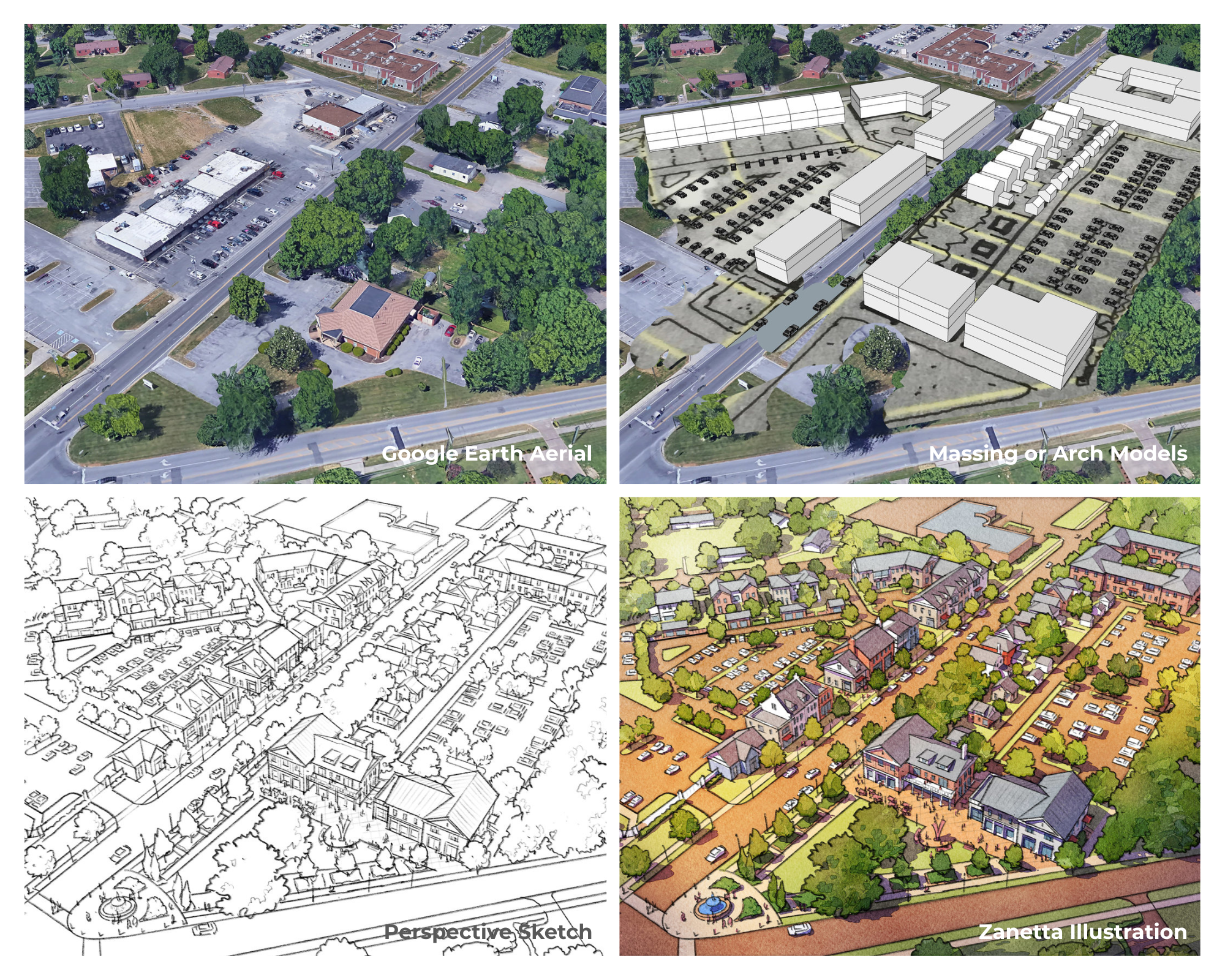
Best Practices for Ongoing Collaboration
- Share one clean export per revision
- Re-export using the same 3D view and settings
- Confirm doors and windows remain visible
- Notify us if building massing or entry locations change
Consistency here results in faster turnarounds and better visuals.
Final Thoughts
This workflow keeps responsibilities clear:
- Architects retain full control and ownership of the building model
- We focus on landscape, context, and experience
The result is efficient collaboration and accurate, compelling perspective renderings.
File Use & Authorization Disclaimer
All architectural design files shared with us are:
- Used solely as a reference for landscape perspective renderings
- Not altered, edited, or value-engineered
- Not shared, distributed, or reused without prior written authorization
- Stored securely and used only for the duration of the project
The architectural model remains the architect’s intellectual property at all times. Our role is to visually integrate the landscape around the approved architecture, not to modify it.
Additional helpful resource if needed: SketchUp help documentation (DWG import)